

ESP32 Wi-Fi Robot: Control a Robot Car from Your Phone Browser
Build an ESP32 Wi-Fi robot driven from any phone browser: soft AP web server, TB6612FNG wiring, core 3.x PWM code, a failsafe and timeout tuning in Python.
Imagine ordering food at a busy Indore cafe that has a QR code on every table. You do not download the cafe's app. You scan, a menu opens in your phone's browser, you tap what you want, and the order lands in the kitchen.
An ESP32 Wi-Fi robot works the same way. The robot is the cafe, its web page is the menu, and every tap sends a tiny order to the kitchen, here a pair of motors. A browser is all your phone needs.
What is an ESP32 Wi-Fi robot?
Map the cafe onto the hardware. The cafe's Wi-Fi is a soft access point the ESP32 creates. The menu page is HTML stored in the ESP32's flash memory. Tapping an item sends an HTTP request to the ESP32's web server. The kitchen is your handleDrive() function, which turns the request into motor speeds.
An ESP32 Wi-Fi robot is a mobile robot whose ESP32 microcontroller runs a web server over Wi-Fi, so that a phone or laptop browser can send drive commands as HTTP requests and receive status back.
Compared with the Bluetooth controlled robot, you gain iPhone support, an interface you design yourself and an easy way to send sensor data back. You pay with less predictable latency, which the failsafe handles. If you are new to the board, Arduino vs ESP32 vs Raspberry Pi explains where the ESP32 fits.
Soft AP or station mode?
In soft AP mode the ESP32 creates its own network, here called WiFiRobot-01, and always sits at 192.168.4.1. Nothing else is needed, so it works in a field, a lab or a competition hall.
In station mode the ESP32 joins an existing router with WiFi.begin(ssid, password). The robot can then reach the internet, but you must find its IP from the Serial Monitor, and college networks often block devices from talking to each other. Start with soft AP.
Parts list and wiring
| Part | Quantity | Notes |
|---|---|---|
| ESP32 DevKit board (ESP32-WROOM-32) | 1 | 38-pin or 30-pin; check the pin labels on yours |
| TB6612FNG dual motor driver | 1 | Works directly with 3.3 V logic |
| 2WD chassis with two geared DC motors, wheels, caster | 1 | |
| 2 × 18650 cells with holder and switch | 1 set | About 7.4 V |
| Buck converter set to 5.0 V | 1 | Feeds the ESP32's 5V (VIN) pin |
| Jumper wires and a small breadboard | As needed |
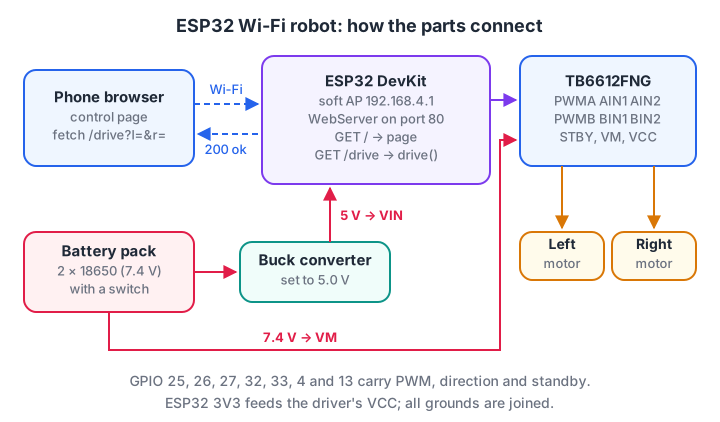
The phone talks HTTP over the ESP32's own Wi-Fi network; the ESP32 talks PWM to the motor driver.
- Power. Battery through the switch to the TB6612FNG's VM pin and to the buck converter input. Set the buck to 5.0 V, then connect its output to the ESP32's 5V/VIN pin.
- Logic power. ESP32 3V3 → TB6612FNG VCC. Join every GND: battery, buck, driver and ESP32.
- Left motor control. GPIO25 → PWMA, GPIO26 → AIN1, GPIO27 → AIN2.
- Right motor control. GPIO32 → PWMB, GPIO33 → BIN1, GPIO4 → BIN2.
- Standby. GPIO13 → STBY. Motors go to A01/A02 and B01/B02.
Quick check
Which ESP32 pin should you avoid as a motor driver output?
GPIO 34 to 39 are input-only on the original ESP32, so they cannot drive a motor driver pin.
How does the phone talk to the ESP32?
Every button press becomes a short HTTP GET request such as /drive?l=180&r=180. The l and r values are signed PWM speeds from −255 to 255. The web server reads them, clamps them to a safe range and calls drive().
A single request is not enough. If your thumb lifts while the phone is out of range, the stop request never arrives. So the page repeats the command every 150 ms while you hold a button, and the ESP32 stops the motors after 500 ms without a request.
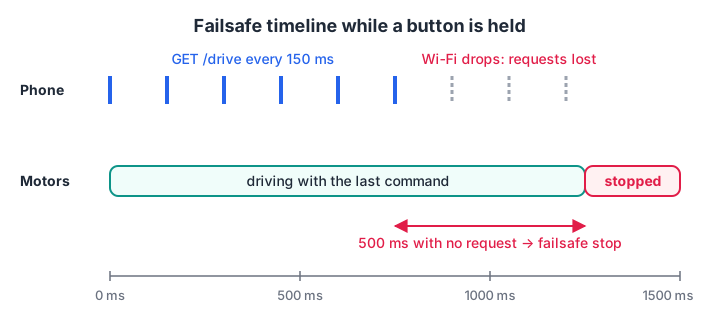
While a button is held, requests arrive every 150 ms. When they stop, the motors stop half a second later.
Server code should never trust what arrives. Here is parsing and clamping in Python, so you can see what happens to bad input. (On the ESP32, toInt() turns text into 0, which also safely stops the motors.)
from urllib.parse import urlparse, parse_qs

def handle(url):
    q = parse_qs(urlparse(url).query)
    try:
        l, r = int(q["l"][0]), int(q["r"][0])
    except (KeyError, ValueError):
        return "400 Bad Request"
    clamp = lambda v: max(-255, min(255, v))
    return f"200 OK, drive({clamp(l)}, {clamp(r)})"

tests = ["/drive?l=150&r=150", "/drive?l=400&r=-90",
         "/drive?l=abc&r=10", "/drive?r=5", "/drive?l=-120&r=120"]
for url in tests:
    print(f"{url:22} -> {handle(url)}")
The ESP32 sketch
Install the ESP32 boards package (version 3.x) in the Arduino IDE, select your DevKit board, and upload this sketch.
// ESP32 Wi-Fi robot: ESP32 DevKit + TB6612FNG (Arduino-ESP32 core 3.x)
#include <WiFi.h>
#include <WebServer.h>
const char* AP_SSID = "WiFiRobot-01";
const char* AP_PASS = "robot1234"; // 8 characters minimum
const int PWMA = 25, AIN1 = 26, AIN2 = 27; // left motor
const int PWMB = 32, BIN1 = 33, BIN2 = 4; // right motor
const int STBY = 13;
const unsigned long FAILSAFE_MS = 500;
WebServer server(80);
unsigned long lastCmd = 0;
bool moving = false;
const char PAGE[] = R"rawliteral(
<!DOCTYPE html><html><head><meta name="viewport" content="width=device-width">
<style>button{width:30%;height:70px;font-size:22px;margin:4px;touch-action:none}</style>
</head><body style="text-align:center;font-family:sans-serif">
<h3>Wi-Fi Robot</h3>
<p>Speed <input id="sp" type="range" min="80" max="255" value="180"></p>
<div><button data-d="1,1">▲</button></div>
<div><button data-d="-1,1">◀</button><button data-d="0,0">■</button><button data-d="1,-1">▶</button></div>
<div><button data-d="-1,-1">▼</button></div>
<script>
let timer = null;
const send = (l, r) => fetch(`/drive?l=${l}&r=${r}`).catch(() => {});
document.querySelectorAll("button").forEach(b => {
const [dl, dr] = b.dataset.d.split(",").map(Number);
b.addEventListener("pointerdown", e => {
e.preventDefault();
const s = +document.getElementById("sp").value;
clearInterval(timer);
send(dl * s, dr * s);
timer = setInterval(() => send(dl * s, dr * s), 150); // repeat while held
});
const stop = () => { if (!timer) return; clearInterval(timer); timer = null; send(0, 0); };
b.addEventListener("pointerup", stop);
b.addEventListener("pointerleave", stop);
});
</script></body></html>
)rawliteral";
void setMotor(int pwmPin, int in1, int in2, int speed) {
speed = constrain(speed, -255, 255);
digitalWrite(in1, speed > 0 ? HIGH : LOW);
digitalWrite(in2, speed < 0 ? HIGH : LOW);
ledcWrite(pwmPin, abs(speed)); // core 3.x: write by pin
}
void drive(int left, int right) {
setMotor(PWMA, AIN1, AIN2, left);
setMotor(PWMB, BIN1, BIN2, right);
moving = (left != 0 || right != 0);
}
void handleDrive() {
if (!server.hasArg("l") || !server.hasArg("r")) {
server.send(400, "text/plain", "need l and r");
return;
}
drive(server.arg("l").toInt(), server.arg("r").toInt());
lastCmd = millis();
server.send(200, "text/plain", "ok");
}
void setup() {
Serial.begin(115200);
int outs[] = {AIN1, AIN2, BIN1, BIN2, STBY};
for (int p : outs) pinMode(p, OUTPUT);
ledcAttach(PWMA, 20000, 8); // 20 kHz, 8-bit (0-255)
ledcAttach(PWMB, 20000, 8);
digitalWrite(STBY, HIGH);
drive(0, 0);
WiFi.softAP(AP_SSID, AP_PASS);
Serial.print("Connect to ");
Serial.print(AP_SSID);
Serial.print(" and open http://");
Serial.println(WiFi.softAPIP()); // normally 192.168.4.1
server.on("/", []() { server.send(200, "text/html", PAGE); });
server.on("/drive", handleDrive);
server.begin();
}
void loop() {
server.handleClient();
if (moving && millis() - lastCmd > FAILSAFE_MS) {
drive(0, 0);
Serial.println("failsafe stop");
}
}Three details matter. 20 kHz PWM is above human hearing, so the motors do not whine. touch-action:none stops the phone scrolling when you hold a button. And server.handleClient() must run often, so loop() has no delay().
If you are moving from older tutorials, note that core 2.x used ledcSetup() and ledcAttachPin() with channel numbers. Core 3.x replaced them with ledcAttach(pin, freq, bits) and lets ledcWrite() take the pin directly.
How fast should the page repeat commands?
The timeout has to be long enough that normal Wi-Fi hiccups do not stop the robot, yet short enough that a real disconnection stops it quickly. This simulation holds a button for one minute, drops 5% of requests and adds 5 to 120 ms of random delay to each one.
import random
random.seed(7)

def false_stops(send_every, timeout, seconds=60, loss=0.05):
    """Count failsafe stops while a button is held the whole time."""
    arrivals, t = [], 0
    while t < seconds * 1000:
        if random.random() > loss:                      # 5% of requests never arrive
            arrivals.append(t + random.randint(5, 120)) # Wi-Fi delay of 5-120 ms
        t += send_every
    arrivals.sort()
    gaps = [b - a for a, b in zip(arrivals, arrivals[1:])]
    return sum(g > timeout for g in gaps), max(gaps)

print("send every | timeout | false stops per minute | longest gap")
for send_every, timeout in [(150, 500), (300, 500), (150, 250), (100, 1500)]:
    stops, worst = false_stops(send_every, timeout)
    print(f"{send_every:7} ms | {timeout:4} ms | {stops:22} | {worst:5} ms")
Sending every 150 ms with a 500 ms timeout gives no false stops. Slowing the page to 300 ms causes repeated jerky stops, and so does a tight 250 ms timeout.
A 1500 ms timeout never stops falsely, but a runaway robot would travel for a second and a half. A good rule of thumb is a timeout of about three times the send interval.
Quick check
Why does the control page repeat the drive request every 150 ms while a button is held?
Repeated requests keep resetting the failsafe timer. When the link drops, the timer expires and the motors stop.
Testing and debugging step by step
- Serial first. Open the Serial Monitor at 115200 baud and press the board's EN button. You should see the network name and
192.168.4.1. - Connect the phone. Join
WiFiRobot-01with the password. The phone may warn that there is no internet; choose to stay connected. - Open the page. Browse to
http://192.168.4.1. Testhttp://192.168.4.1/drive?l=120&r=120directly in the address bar with the wheels in the air. - Check directions. Each arrow should move the wheels the expected way. Swap a motor's wires if one is reversed.
- Test the failsafe. Hold forward and switch off the phone's Wi-Fi. The wheels must stop within about half a second.
If the board resets when the motors start, the battery or buck converter cannot supply the current spike; check wiring and add a 470 µF capacitor near the driver. If the page loads but nothing moves, check that STBY is high and that the grounds are joined. If uploads fail, hold the BOOT button as the upload starts.
When you want a break from wiring, take quick networking and coding MCQs on Debugshala Test.
Extensions to try next
- Telemetry. Add a
/statusroute that returns battery voltage and an ultrasonic distance as JSON, and show it on the page. - Joystick control. Replace the arrows with a touch joystick that sends smooth left and right speeds.
- Camera view. An ESP32-CAM board can stream video, though it leaves few free pins for motors. A Raspberry Pi with a camera, covered in Raspberry Pi camera projects, is easier for vision.
- MQTT. Publish robot status to a broker so many robots can be monitored together, explained in the MQTT protocol.
- Arm control. The same page can drive servo sliders for the robotic arm project.
Key takeaways
- In soft AP mode the ESP32 creates its own network and serves a control page at 192.168.4.1.
- Each button sends
/drive?l=..&r=.., and the server clamps both values before driving. - Repeat commands every 150 ms and stop after 500 ms of silence.
- Use safe GPIO pins and core 3.x
ledcAttach()andledcWrite()for PWM. - A browser-based robot works on every phone, which makes it ideal for demos and classrooms.
FAQ
Can I control an ESP32 robot over the internet?
Yes, but not with this sketch alone. Soft AP mode only works within Wi-Fi range. For control from anywhere, run the ESP32 in station mode and connect through a cloud broker or a secured relay. Never open a robot's web server to the public internet without authentication.
What is the Wi-Fi range of an ESP32 robot?
Indoors, expect a few tens of metres in open space and much less through concrete walls. Range depends on the antenna, interference and the phone. Keep the board's antenna end clear of motors and metal, and rely on the failsafe.
Why does my ESP32 reset when the motors start?
Motors draw a large current spike when they start, which can pull the supply voltage below what the ESP32 needs, causing a brownout reset. Use a buck converter rated for at least 2 A, short thick power wires, a shared ground, and a large capacitor near the motor driver.
Should I use the ESP32 web server or an app for robot control?
A web server needs no installation and works on Android and iPhone alike, so it is the best starting point. A dedicated app or BLE gives lower latency and better controls but takes more work. Many projects start with a web page and only move on if latency becomes a problem.
Where can I learn ESP32 robotics in Indore?
ESP32 Wi-Fi and Bluetooth control is part of Debugshala's ESP32 robotics classes at Old Palasia, within its project-based Robotics course. You build wireless robots on real hardware with mentors, and the course ends with a final robot project. Teaching is in English and Hindi, and a free demo class is available.
From the team behind this site
Go further with the Robotics Course at Debugshala
These tutorials are written by Debugshala, a training and placement institute at Old Palasia, Indore. The classroom course adds live mentoring, real projects and interview preparation.
- Offline classes at Old Palasia, Indore
- Free demo class before you pay
- Non-IT, fresher and year-gap friendly
- Placement assistance
700+ students placed · 200+ hiring partners · 4.9★ Google rating
